
 MedTracks help
Getting the most from MedTracks
Set-up, how notifications work, and the phone settings that keep your reminders reliable.
Set-up
Tap + on the Home screen to add a medicine. There are four steps.
-
Choose an image
Take a photo of your medicine or its box, or pick a picture from the carousel. The image you choose is outlined in blue.
-
Add the medicine's details
Type the medicine's name. You can also add a nickname, which is what appears in the notification. Choose the form from the list (for example tablets, capsules, mg, ml or drops) and enter the quantity.
-
Set the schedule
All days are selected to begin with, so untick any days you do not need a reminder. Choose the times of day. You can also set an end date.
-
Choose a song
MedTracks picks a song from when you were aged 6 to 15. You can keep it, tap Select Song to choose your own, or tap Surprise me for a different song with each reminder. With Surprise me, the Home screen shows "Surprise" until the song plays.
The song list holds the Top 40 for every year from 1968 to 2019, grouped by decade. Use the menu on the right to jump to a year.
Notifications
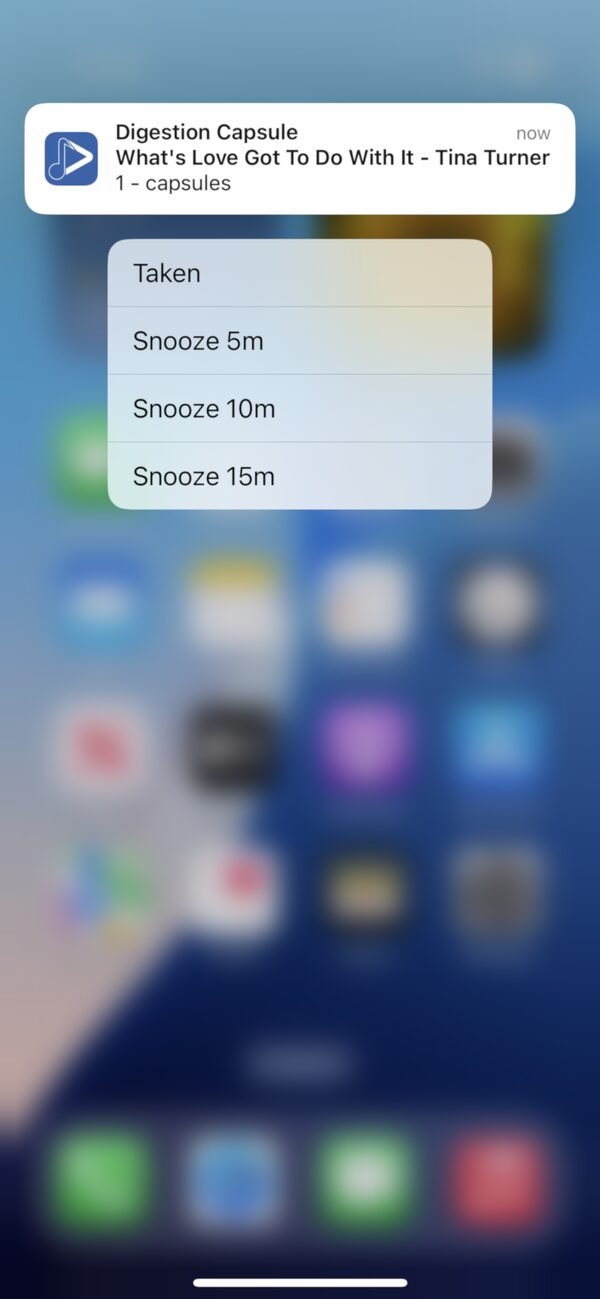
Your reminder arrives as a notification with your song, even when the app is closed. Here is what you can do with it.
On iPhone
- Tap the notification to open the app at that medicine.
- Press and hold for options: Taken, or snooze for 5, 10 or 15 minutes.
- Swipe left to clear the notification.
- Marking a dose as taken updates the app automatically.
On Android
- Tap the notification to open the app. On most phones it opens at that medicine, and the song stops.
- Tap the small arrow on the notification to mark the dose as taken or to stop it.
- You can snooze for 5 or 10 minutes.
- Swipe to clear the notification.
- Marking a dose as taken updates the app automatically.
In the app
- Swipe right on a medicine to mark it as taken.
- Swipe left to edit or delete it.
iPhone: let your song play for 30 seconds
One iPhone setting lets MedTracks notifications play for the full 30 seconds.
- Open Settings and tap Notifications.
- Scroll down the list of apps and tap MedTracks.
- Tap Banner Style.
- Make sure Persistent is ticked.
- Close Settings. Your notifications will now play for 30 seconds.
Android: keep reminders working while your phone sleeps
MedTracks needs to be excluded from battery optimisation, so it can send reminders while your phone is asleep. Menu names vary between phones. Here are the steps for some common models.
Samsung (S22)
Settings › Apps › MedTracks › Battery › choose Unrestricted.
Google Pixel (6 Pro)
Settings › Apps › MedTracks. Under Notifications, turn on all MedTracks notifications. Under Battery, allow background usage.
Oppo (Find)
Settings › Apps › App management › search for MedTracks. Allow notifications. In battery usage, allow background activity, with both foreground and background selected.
Xiaomi or Redmi
Settings › Apps › Manage apps › search for MedTracks. Allow all notification options, then set Battery saver to No restrictions.
Still stuck?
If your phone's menus do not match these steps, or something is not working, email info@m-tracks.com or use our contact form.